In this tutorial we are going to create new project in KEIL uVision IDE. This tutorial will be followed all of the upcoming tutorials otherwise stated. So, let’s start 🙂
A Fresh Start
Once you double-click uVision IDE, you will be faced with wide empty starting page, don’t worry we will fill that workspace throughout our journey.

Then follow this; Project > New uVision Project, then on the folder selection; create new folder in Documents and name it uVisionWorkspace. This will be our main folder for all projects. Then create another folder in uVisionWorkspace and name it according to your desired project name. Don’t use space between words, use “_” or “-” instead. For example “Example_Project”.
When you named your project and click OK. Pop-up window below will appear.
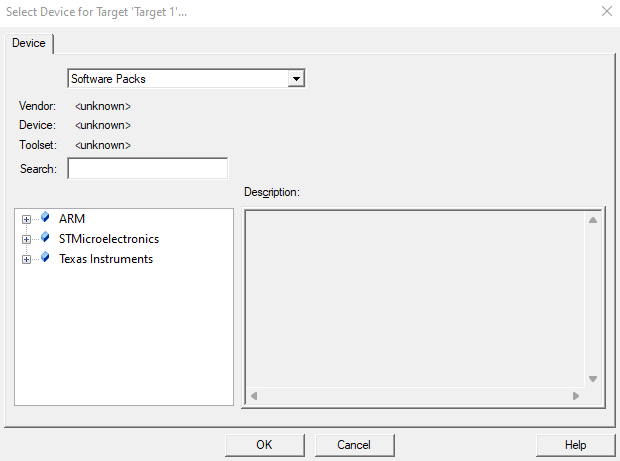
Enter “411RE” to search textbox than highlight the MCU. If you use another MCU search accordingly. Then click OK.
After MCU selection, another po-up window will appear. It’s the Run Time Environment selection window. We will not use any of high-level library as I promised. Only we need Cortex-M core library and startup files for given MCU. These are required because we are not going to make startup file from scratch in this tutorial it will maybe be another topic of tutorial series.

After configurations project will be ready to use. My personal preference I will rename “Target 1” folder as “F411RE” and “Source group” as “src”.

Now we need to configure options for target. This is important step! Do not skip. For this right-click target name (e.g. F411RE folder). Then click “Options for Target ‘F411RE’…”.

These are briefly explanations which tab is for, we will not use many of them but it’s good to know.
“Device” tab let’s you to check your selected device settings and Toolset.
“Target” tab allows you to configure the device and to set application-specific options. The fields and options displayed in the dialog depend on the device selected.
“Output” tab allows you to configure the files that will be created automatically when you compile the code.
“Listing” tab allows you to configure which listing will be done. µVision creates several listing files that can be configured with these dialogs.
“User” tab allows you to specify programs that are executed during the build process. Programs can be run before compiling, before building, and after building the application.
“C/C++(AC6)” tab is Options dialog for ARM Compiler 6.
“Asm” tab is Options dialog for Arm Assembler.
“Linker” tab is options for Arm Linker.
“Debug” tab defines options that are applied when a debugging session is started.
“Utilities” tab configures the options for programming the Flash memory of the target system.
Configuring Target Options
We will configure “Debug” tab for just simplicity. Other options are default will be fine.
Once you open “Debug” tab; change debugger as ST-Link Debugger than click Settings button after.
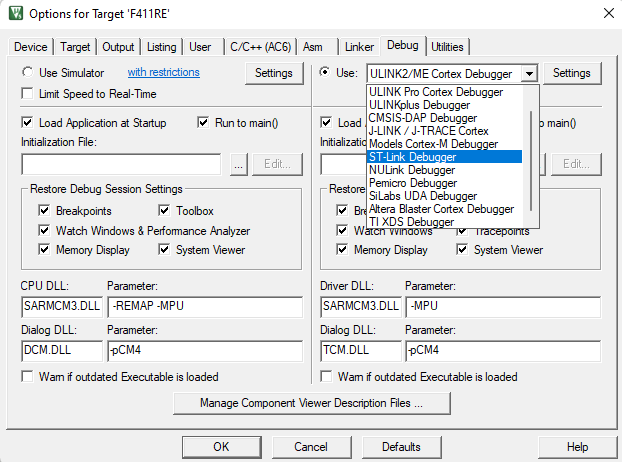
On the settings window click “Trace” tab and check enable trace box. Then “Flash Download” tab check reset and run box.
Creating main.c File
Last object is creating main.c file for codding. For this; right-click “src” folder then click “Add New Item to Group” then choose C File name it main.c then click OK.
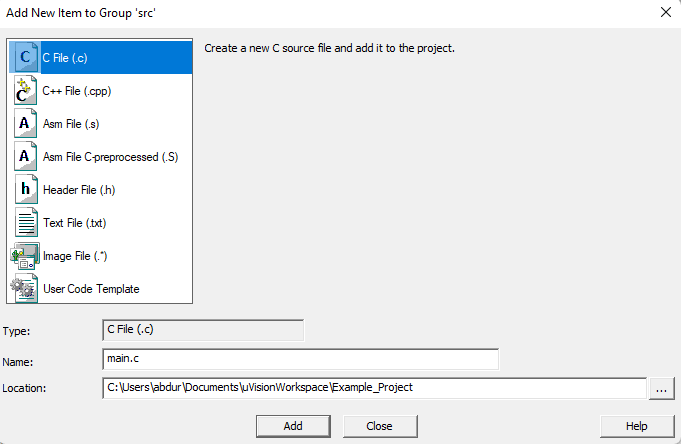
main.c file will open. The below structure will be used every single project.
#include "stm32f411xe.h"

int main()
{


	while(1)
	{


	}
}
Good job if you make it through here 🙂 I hope I will see you in next tutorial.
 Blog about electronics